Devices
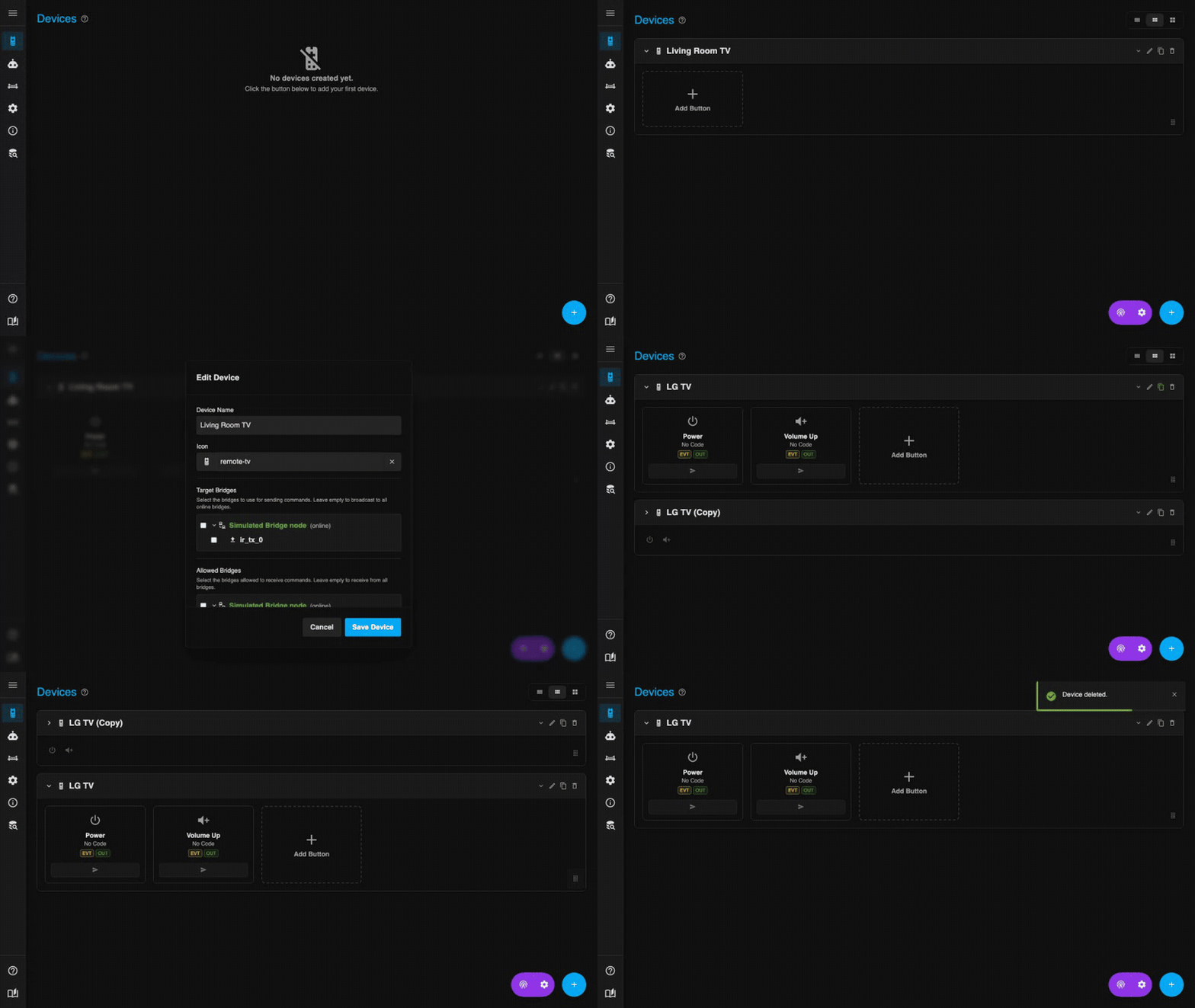
Creating Devices
A "Device" in IR2MQTT represents a physical appliance. You can create devices in three ways:
- From Template: Use built-in templates for common device types (TV, AC, Fan) to pre-populate standard buttons.
- From Database: Import a device directly from the integrated IR Database (Flipper Zero / Probono formats).
- Manual: Create a blank device and add buttons one by one.
Note: Device names must be unique across the system.
Bridge Targeting
If you have multiple IR bridges (ESPHome nodes) in different rooms, you can control which bridge handles a device.
- Target Bridges (Sending): Determines which bridge(s) emit the IR signal when you click a button. If empty, signals are broadcast to all online bridges.
- Allowed Bridges (Receiving): Filters incoming signals. The device will only react to IR codes received by these bridges. Useful to prevent cross-talk between rooms.
Managing Devices
- Expand/Collapse: Click the device name or icon to toggle the detailed view. When collapsed, a compact list of button icons is shown.
- Reorder: Drag and drop devices using the handle in the bottom right corner of the card to rearrange them.
- Actions: Use the small buttons in the top right of each device card:
- Info: Show MQTT topics for this device.
- Edit: Change name, icon, or bridge settings.
- Duplicate: Create a copy of the device and its buttons.
- Delete: Remove the device.