Buttons & Codes
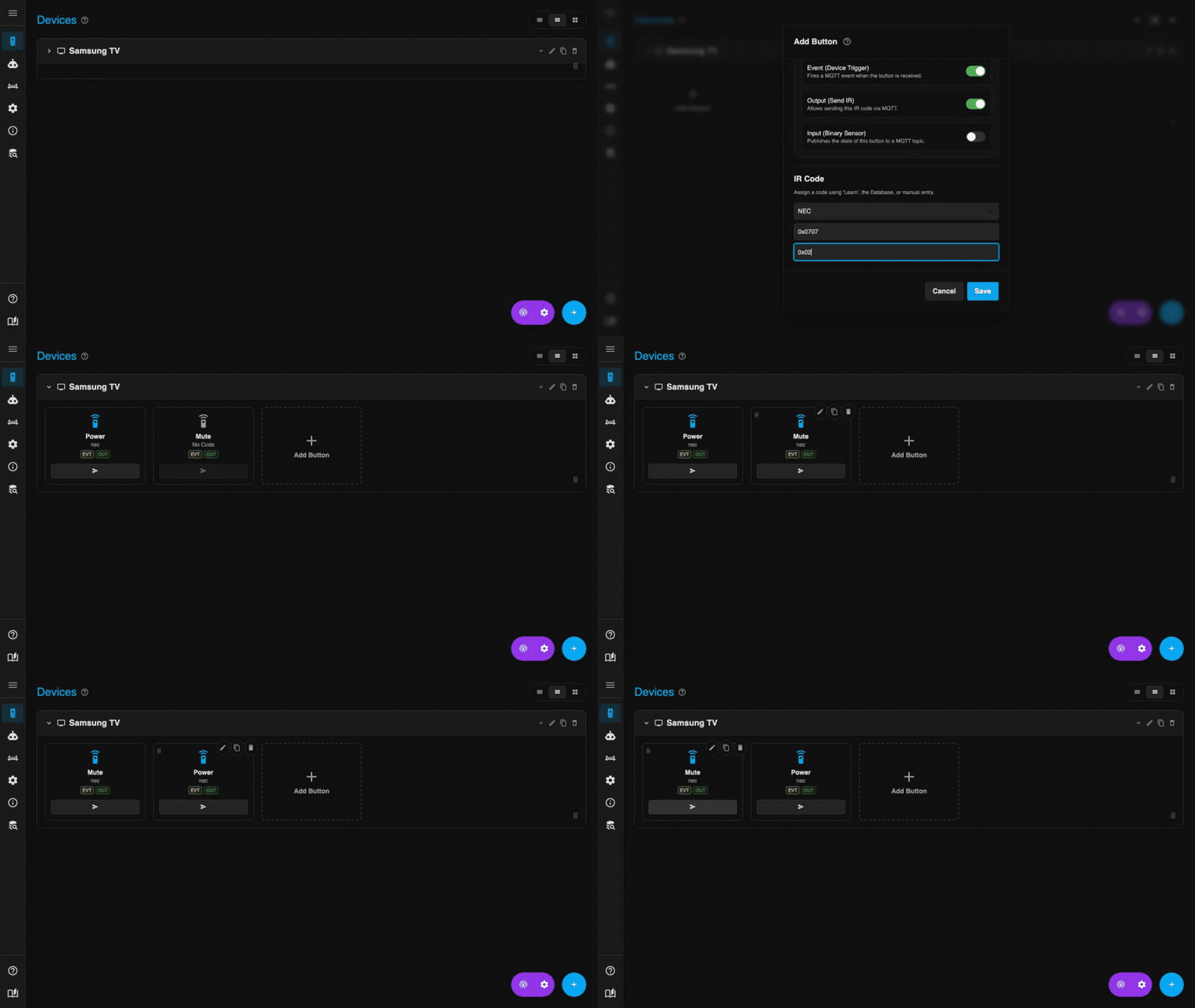
Button Capabilities
Each button can be configured to perform different roles within the system.
- Output (Send): Enables sending this IR code. In Home Assistant, this creates a
buttonentity. - Input (Receive): Tracks the state of this button. In Home Assistant, this creates a
binary_sensor. Modes include Momentary (on/off), Toggle (switch), and Timed (on for X seconds). - Event (Trigger): Fires a stateless event when the code is received. In Home Assistant, this is exposed as a
device_automationtrigger.
Interacting & Managing
- Quick Send: Clicking on a button's icon (in both expanded and collapsed views) will immediately send the IR code. The command is sent to the bridges defined in the device's Target Bridges setting.
- Editing & Reordering: Drag buttons to rearrange them. Hover over a button card to reveal edit, duplicate, and delete actions. Button names must be unique within a single device.
IR Codes & Learning
- Learning Mode: Click the Learn button in the top bar to capture codes from a physical remote.
- Simple: Captures the first valid signal.
- Smart: Requires multiple presses to find the most consistent signal (filters out noise). Recommended for noisy environments.
- Protocols: Supports standard protocols (NEC, Sony, Samsung, RC5/6) and RAW data.
Non-standard carrier frequencies
Some protocols (RC5, RC6 at 36 kHz — Sony at 40 kHz — Dish at 57.6 kHz) use a different carrier than the standard 38 kHz. A 38 kHz receiver module will pick up nearby frequencies with reduced sensitivity — try holding the remote closer. For protocols far outside that range, a matching receiver is needed. See the protocol frequency table.
Dish protocol
Dish uses a 56 kHz carrier frequency instead of the standard 38 kHz. Make sure your hardware supports it before trying to learn Dish codes.
- RAW: Used for unknown protocols. Captured as a sequence of microsecond pulses. RAW codes are larger and slightly less reliable than decoded protocols — prefer a named protocol when available.