Automations
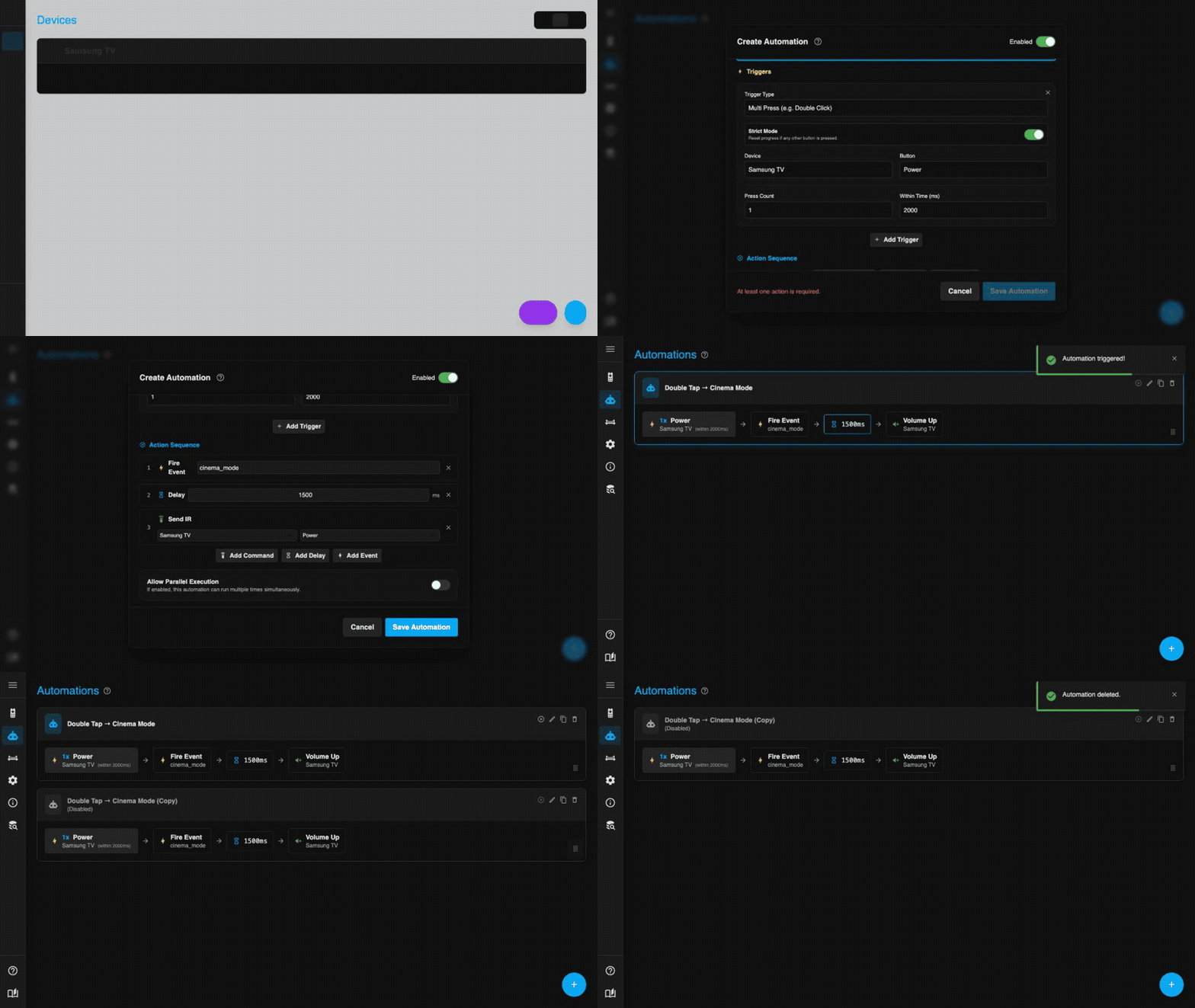
Automations allow you to define logic that runs directly on the IR2MQTT backend, reducing latency compared to round-tripping through Home Assistant.
Triggers
- Single Press: Runs immediately when a specific button code is received.
- Multi Press: Runs only after a button is pressed X times within a time window (e.g., Double Click). Strict Mode: Resets progress if any other button is pressed in between.
- Sequence: Runs when a specific sequence of buttons is pressed (e.g., "Up, Up, Down, Down"). Useful for secret codes or complex commands.
- Device Inactivity: Runs after a configurable period of silence on a device — no buttons received or sent within the timeout. Useful for "idle" actions like turning off a display after the user stops interacting.
Device Inactivity Options
| Option | Description |
|---|---|
| Device | Which device to watch for activity. |
| Timeout | How many seconds of silence before the trigger fires. |
| Watch Mode | What counts as activity: received (IR codes received from the device), sent (IR codes sent to the device), or both. |
| Rearm Mode | What happens after the trigger fires: always (arm again immediately), cooldown (wait a fixed time before rearming), never (fire once and stop). |
| Cooldown | Seconds to wait before rearming (only relevant when Rearm Mode is cooldown). |
| Button Whitelist | If set, only these buttons count as activity (all others are ignored). |
| Button Blacklist | If set, these buttons are ignored when tracking activity. |
| Require Initial Activity | When enabled (default), the timer only starts after the first button is seen. When disabled, the timer starts as soon as the automation loads. |
| Ignore Own Actions | When enabled (default), IR codes sent by this automation do not reset the inactivity timer — preventing the automation from rearming itself indefinitely. |
The UI shows a live countdown bar and highlights when the trigger fires or enters cooldown.
Execution Options
- Parallel Execution: By default, an automation waits for the previous run to finish before starting again. Enable this to allow multiple instances to run simultaneously.
Actions
- Send IR: Transmit another IR code.
- Delay: Wait for a specified duration (milliseconds).
- Fire Event: Send a custom event to MQTT/Home Assistant to trigger external logic.
Recipes
Common use cases you can build with automations.
Double-Click Power to Toggle a Light
Goal: A double-click on the TV remote's Power button fires a Home Assistant event that toggles a light — without any HA automation delay.
| Field | Value |
|---|---|
| Trigger | Multi Press — TV / Power, count: 2, window: 800 ms |
| Action | Fire Event — name: living_room_light_toggle |
In Home Assistant, create an automation triggered by the MQTT device trigger living_room_light_toggle on the IR2MQTT device.
Chained IR Blast (TV + Soundbar + Input)
Goal: One button press turns on the TV, waits for it to boot, then switches the soundbar to HDMI input.
| Step | Action |
|---|---|
| 1 | Send IR — TV / Power |
| 2 | Delay — 3000 ms |
| 3 | Send IR — Soundbar / Power |
| 4 | Delay — 1500 ms |
| 5 | Send IR — Soundbar / HDMI 1 |
Parallel Execution
Disable Parallel Execution for this automation so that rapid button presses don't stack multiple blasts on top of each other.
Secret Code to Arm/Disarm
Goal: Press Up → Up → Down → Down on any remote to fire a "secret" event (e.g., arm an alarm).
| Field | Value |
|---|---|
| Trigger | Sequence — Up, Up, Down, Down |
| Action | Fire Event — name: alarm_toggle |
Strict Mode
Enable Strict Mode on the trigger so that pressing any other button resets the sequence progress. This prevents accidental triggers.
Volume Repeat with Delay
Goal: A single "Volume Up" press on a custom button sends the code three times in quick succession (for devices that need multiple pulses).
| Step | Action |
|---|---|
| 1 | Send IR — Amplifier / Volume Up |
| 2 | Delay — 150 ms |
| 3 | Send IR — Amplifier / Volume Up |
| 4 | Delay — 150 ms |
| 5 | Send IR — Amplifier / Volume Up |
Triple-Click for a Scene
Goal: Triple-click the bedroom remote's OK button to trigger a "Good Night" scene in Home Assistant.
| Field | Value |
|---|---|
| Trigger | Multi Press — Bedroom Remote / OK, count: 3, window: 1000 ms |
| Strict Mode | Enabled |
| Action | Fire Event — name: scene_good_night |
In Home Assistant, handle scene_good_night to dim lights, lock doors, and set the thermostat.
AVR Display Off After Inactivity
Goal: An AV receiver turns on its front display with every IR command. After 30 seconds of no interaction, automatically send the "Display Off" code.
| Field | Value |
|---|---|
| Trigger | Device Inactivity — AVR, timeout: 30 s |
| Watch Mode | both (received + sent) |
| Rearm Mode | always |
| Ignore Own Actions | Enabled — so the "Display Off" send does not reset the timer |
| Action | Send IR — AVR / Display Off |
Ignore Own Actions
Keep Ignore Own Actions enabled. Without it, sending "Display Off" would count as activity and immediately restart the 30-second countdown, causing the timer to loop forever.
Auto-Sleep a Projector
Goal: If no IR commands have been sent to the projector for 2 hours, send a "Power Off" command — in case someone forgot.
| Field | Value |
|---|---|
| Trigger | Device Inactivity — Projector, timeout: 7200 s |
| Watch Mode | sent |
| Rearm Mode | never — fire once per session |
| Require Initial Activity | Enabled — only start the timer after the projector was actually used |
| Action | Send IR — Projector / Power |
Notify on Idle Device
Goal: After 5 minutes of silence on a media device, fire an MQTT event that Home Assistant uses to dim the lights (indicating nothing is playing).
| Field | Value |
|---|---|
| Trigger | Device Inactivity — Media Player, timeout: 300 s |
| Watch Mode | received |
| Rearm Mode | cooldown, cooldown: 60 s |
| Action | Fire Event — name: media_player_idle |