Bridges
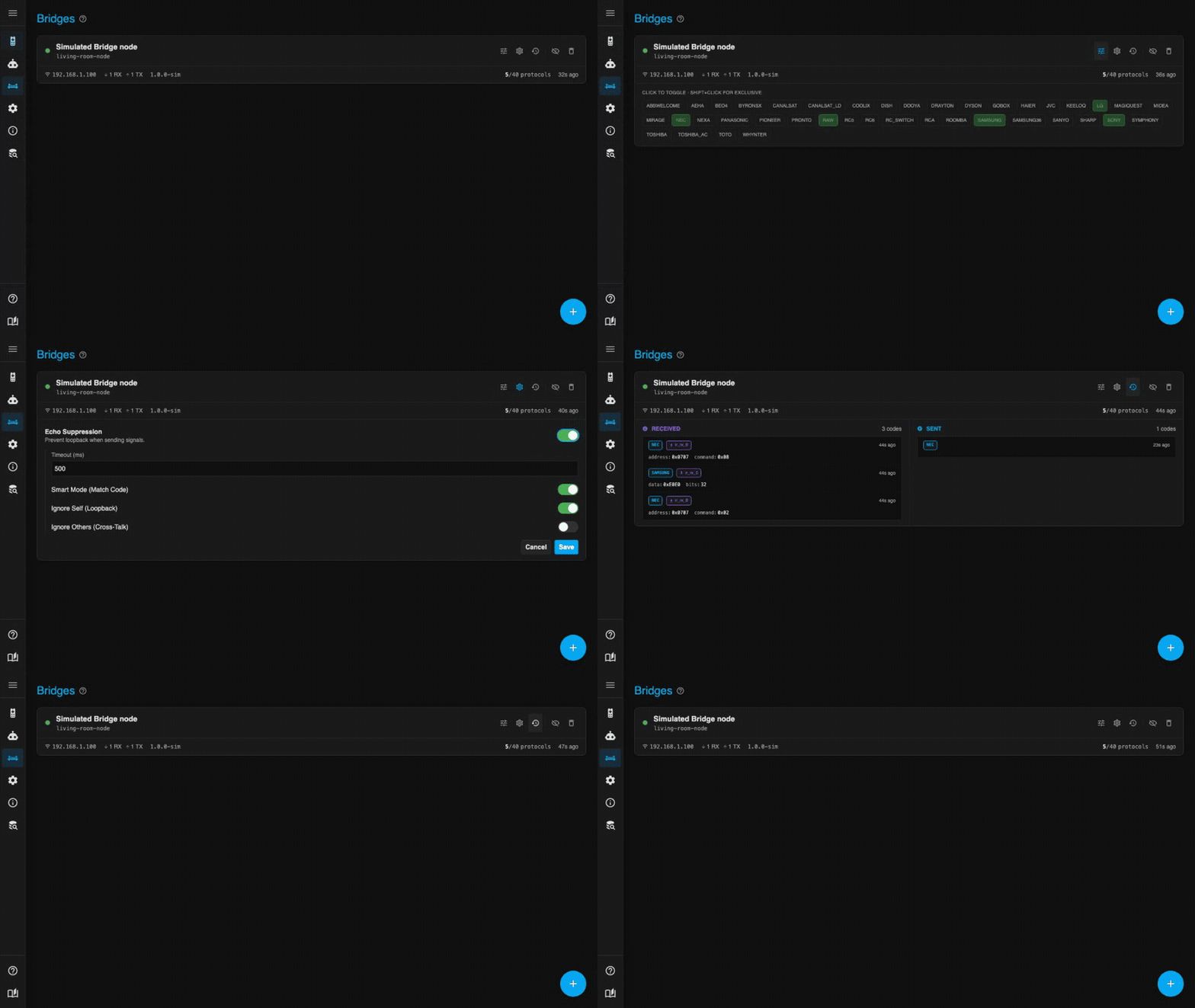
Bridges are the physical ESP32 devices running the IR2MQTT firmware. They communicate with this backend via MQTT.
ESPHome Firmware
IR2MQTT requires custom ESPHome firmware to function. The bridge firmware and configurations are maintained in a separate repository: ir2mqtt_bridge.
Firmware Configuration
Add the component to your ESPHome YAML:
ir2mqtt_bridge:
  receivers: [rx1, rx2]         # List of remote_receiver IDs (optional)
  transmitters: [tx1, tx2]      # List of remote_transmitter IDs (optional)
  uart_id: bridge_uart          # UART component ID for serial mode (optional)
  device_id: "livingroom"       # Custom ID used in MQTT topics (default: MAC address)
  status_led: status_light      # Light component ID for visual feedback (optional)
  protocols:                    # Protocols active on first boot (default: all except rc_switch)
    - nec
    - samsung
    - raw
uart_id — References an ESPHome uart: component. When set, the bridge reads JSON commands from RX and writes JSON output to TX. Requires logger: baud_rate: 0 to prevent the ESPHome logger from interfering with UART0.
device_id — Sets the base for all MQTT topics: ir2mqtt/bridge/<device_id>/.... Defaults to the device MAC address (e.g. 28562f9056c4).
protocols — Persisted to flash. Can be changed at runtime via the set_protocols command. See Supported Protocols below.
Supported Protocols
nec, samsung, samsung36, sony, panasonic, rc5, rc6, jvc, lg, coolix, pioneer, dish, midea, haier, raw, pronto, aeha, abbwelcome, beo4, byronsx, canalsat, canalsat_ld, dooya, drayton, dyson, gobox, keeloq, magiquest, mirage, nexa, rc_switch, roomba, symphony, toshiba_ac, toto
For the JSON payload fields each protocol uses when sending or receiving, see the Protocol Payload Reference.
ESP32 Hardware Limits
The ESP32 has 8 RMT channels total: 4 RX, 4 TX. Each remote_receiver, remote_transmitter, and addressable LED (WS2812) consumes one channel.
ESPHome defaults to 192 RMT symbols per receiver (= 3 channels). Set rmt_symbols: 64 on each receiver/transmitter when using more than one to stay within the 4-channel limit per direction.
| Setup | RX ch | TX ch | Total |
|---|---|---|---|
| 1× RX, 1× TX | 1 | 1 | 2 |
| 1× RX, 1× TX, 1× WS2812 LED | 1 | 2 | 3 |
| 2× RX, 3× TX, 1× WS2812 LED | 2 | 4 | 6 |
| 4× RX, 4× TX (no LED) | 4 | 4 | 8 |
Input-only GPIOs
GPIO34, 35, 36, 39 are input-only — fine for receivers, but need an external 10 kΩ pull-up if the IR sensor module doesn't include one.
Discovery
- Network Bridges: Automatically discovered when they connect to the MQTT broker.
- Serial Bridges: Connect an IR receiver directly via USB. Click "Add Serial Bridge" in the bottom right corner to configure.
- Ignored Bridges: Click the eye-off icon on a bridge card to hide it. View and restore them using the eye icon in the bottom right.
Protocols
You can enable/disable specific IR protocols per bridge by clicking on the protocol chips in the list. Disabling unused protocols reduces false positives and CPU load on the ESP32.
Shift+Click for exclusive selection
Shift+Click a protocol to exclusively enable it (disabling all others). If the protocol is already the only one enabled, Shift+Click inverts the selection instead.
Bridge Settings & Echo Suppression
Click the edit icon on a bridge row to access advanced settings.
- Echo Suppression: Prevents the bridge from receiving its own signals (loopback) when sending.
- Timeout: Time window to ignore signals after sending.
- Smart Mode: Only ignores signals that match the sent code.
- Ignore Self: Ignore signals received by the sending bridge.
- Ignore Others: Ignore signals received by other bridges (cross-talk).
Echo suppression too aggressive?
If a button works the first time but not immediately after, the suppression timeout may be too long. Reduce it or switch to Smart Mode to only suppress the exact sent code.
Status LED
A WS2812 LED (or compatible addressable LED) can be connected to the bridge for visual feedback. Reference it via status_led: in the firmware configuration.
| Color | Event |
|---|---|
| Blue fade | Booting |
| Dim blue | Idle |
| Green flash | MQTT connected / first valid serial command |
| Red flash | MQTT disconnected |
| Orange flash | Invalid JSON / unknown command / send failed |
| Purple/magenta flash | IR signal received |
| Bright blue flash | IR signal transmitted |
Signal History
Click the history icon to expand a bridge row. This shows a real-time log of the last 10 Received and Sent IR codes for that specific bridge.
Diagnostics
Loopback Test
Use the Loopback Test to verify your hardware before troubleshooting software issues. Select a Sender (TX) bridge and a Receiver (RX) bridge (can be the same device if the LED points at the receiver). The system sends a series of test codes and reports how many were received correctly.